SafeReferral lets you control which workstations can run the program. This way, no one can access your patients private information from outside the office without your permission.
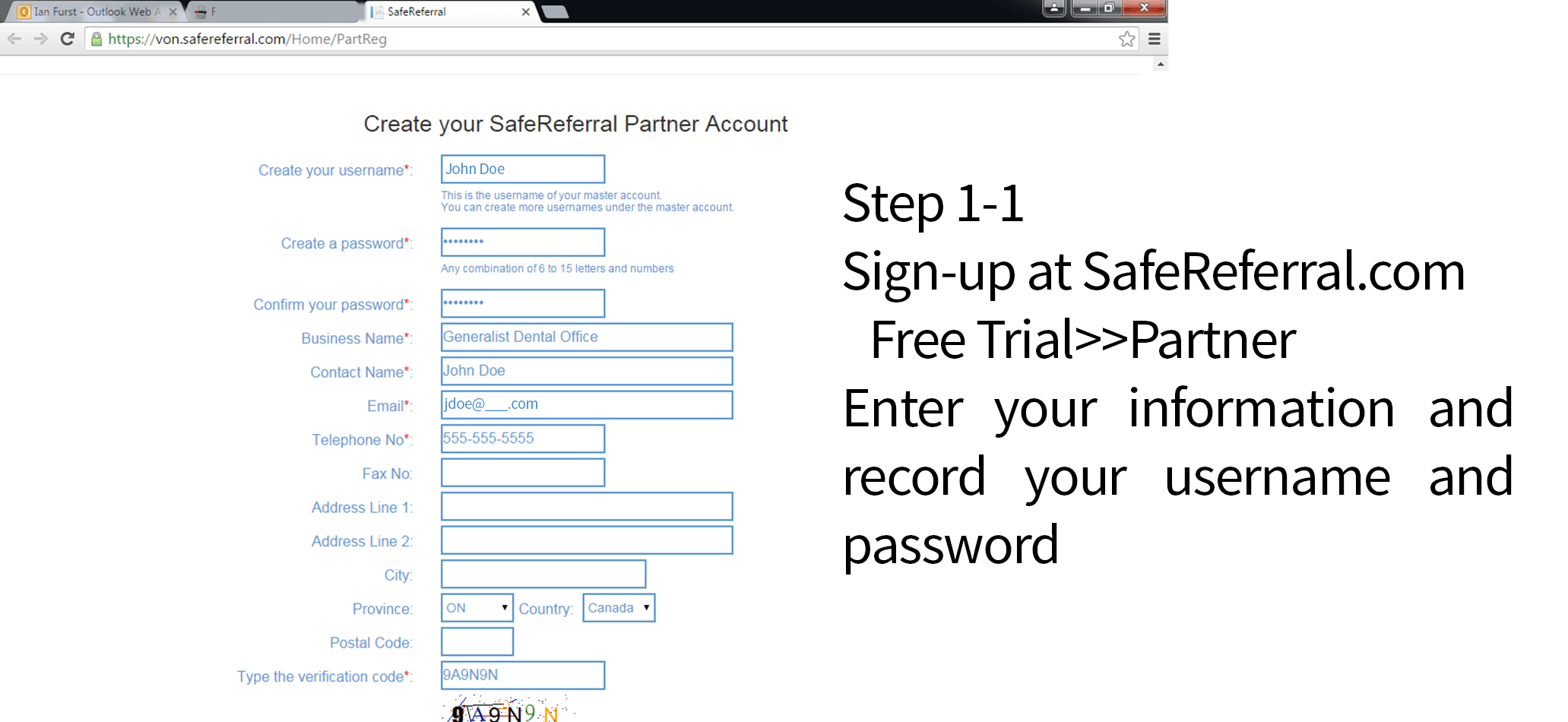
Step 1: Send request
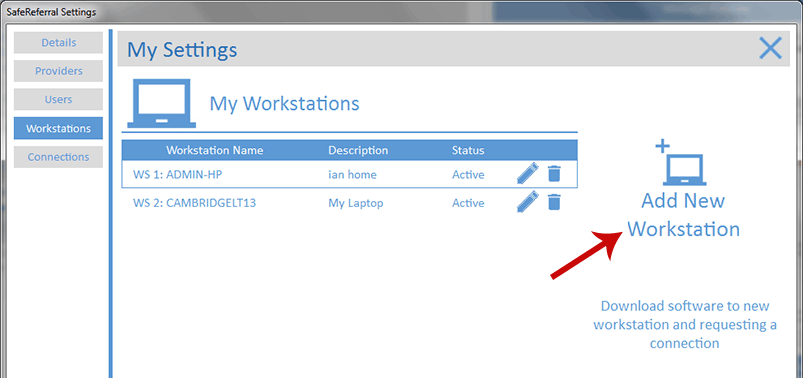
- Click the setting icon (gear icon, top right)
- Click "My Workstation"
- Click "Add a workstation"
- Confirm request
This will send a request to the SafeReferral services then a new activation code to the master user's email account.
Step 2: Download and Install
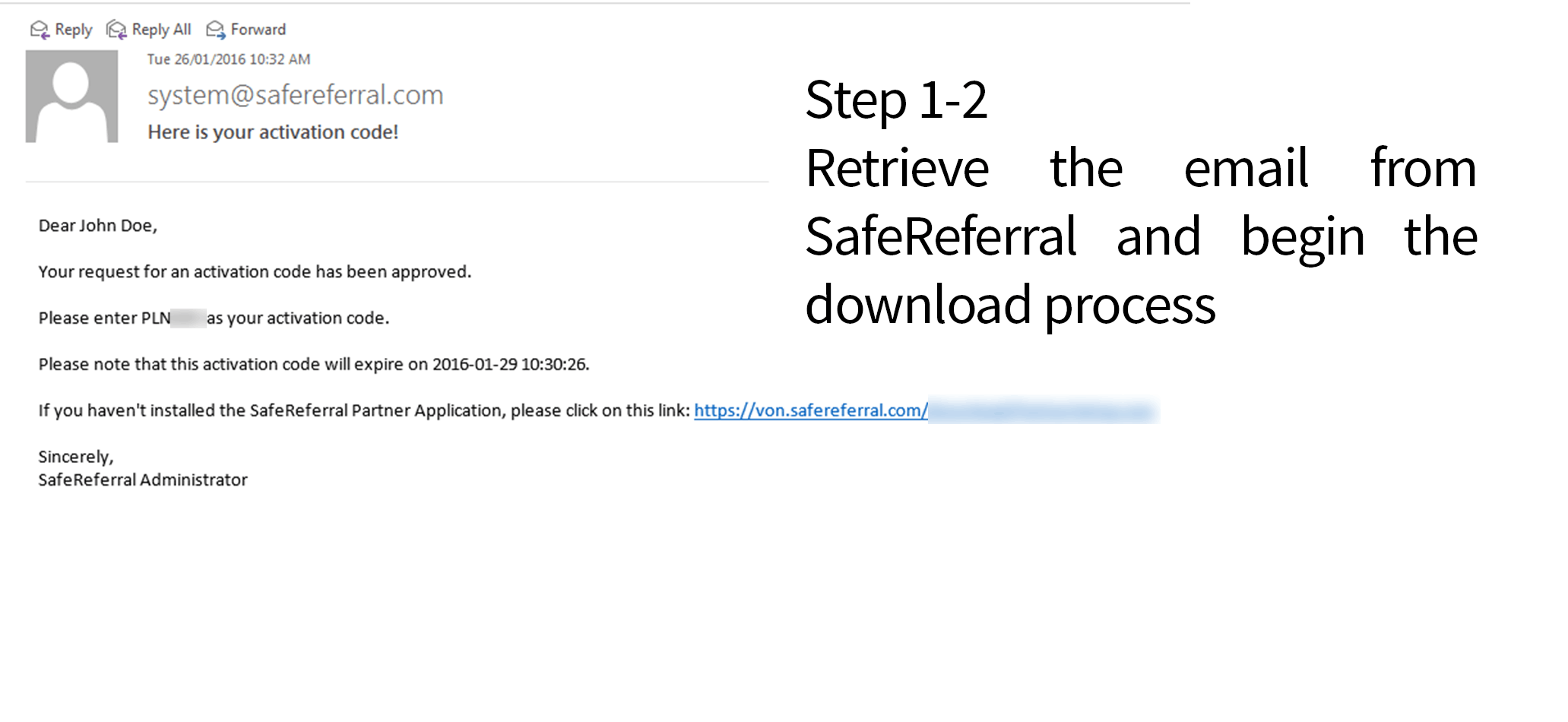
- Find the email sent to you from SafeReferral
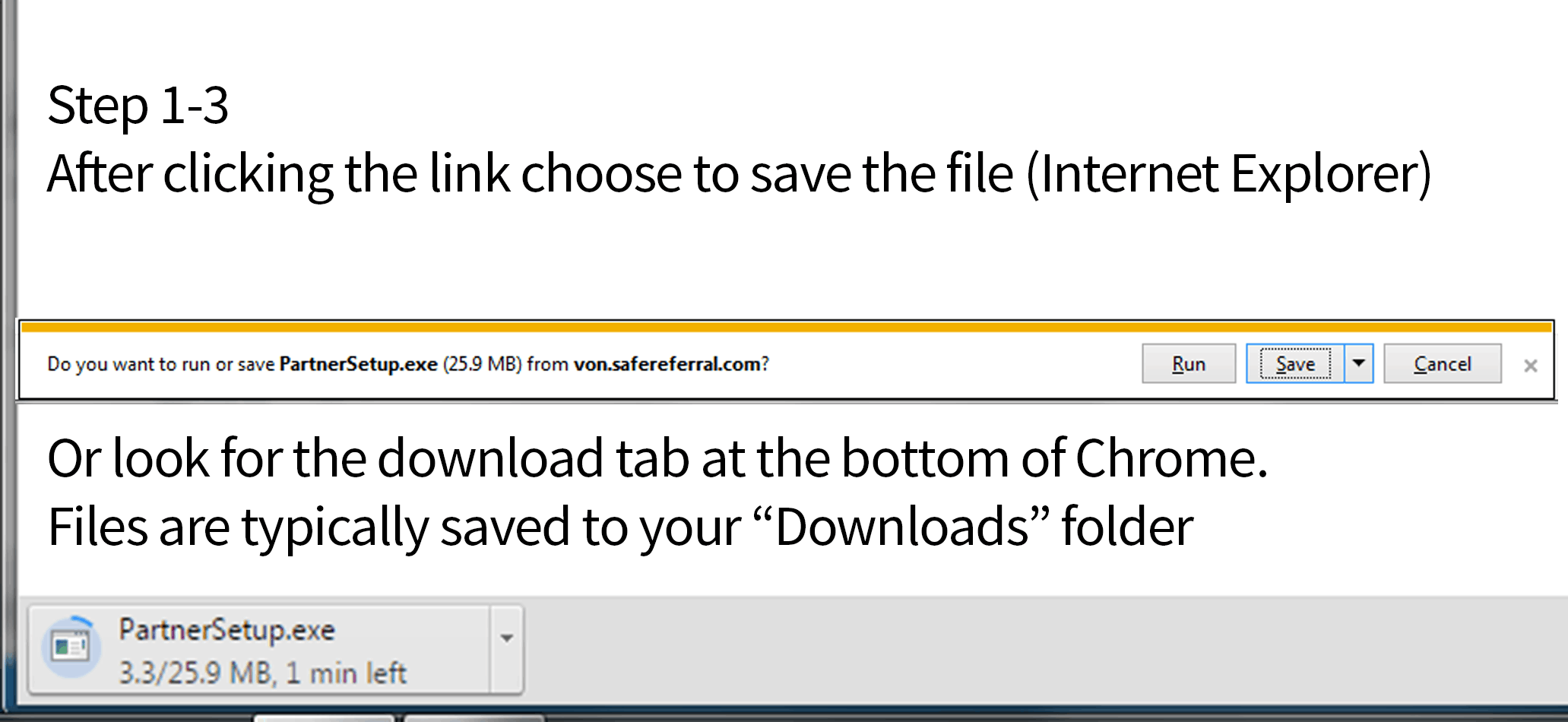
- Use the link to download "PartnerSetup.exe" to your computer
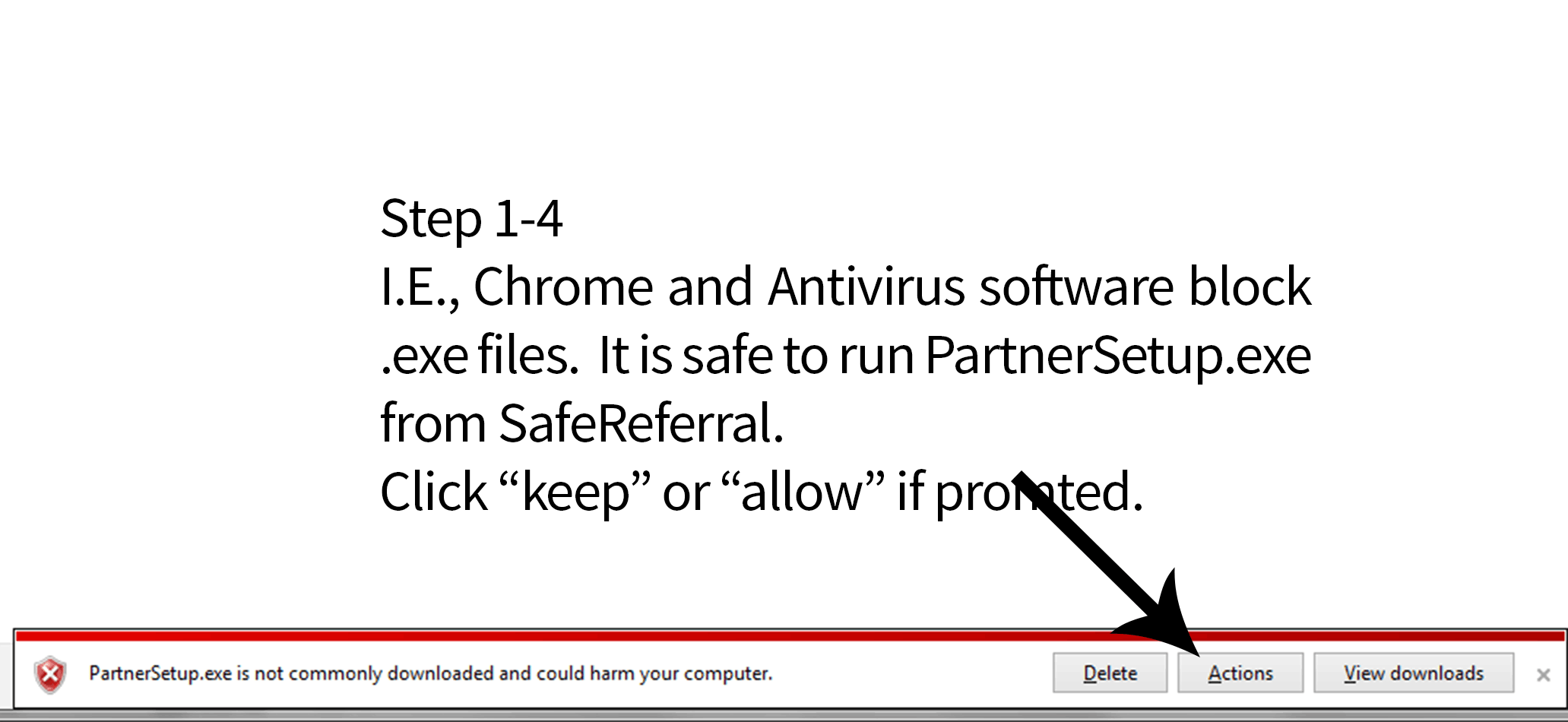
- Note: Internet browsers block ".exe" files by default. Select "Keep" in Chrome or "Allow" in Internet Explorer
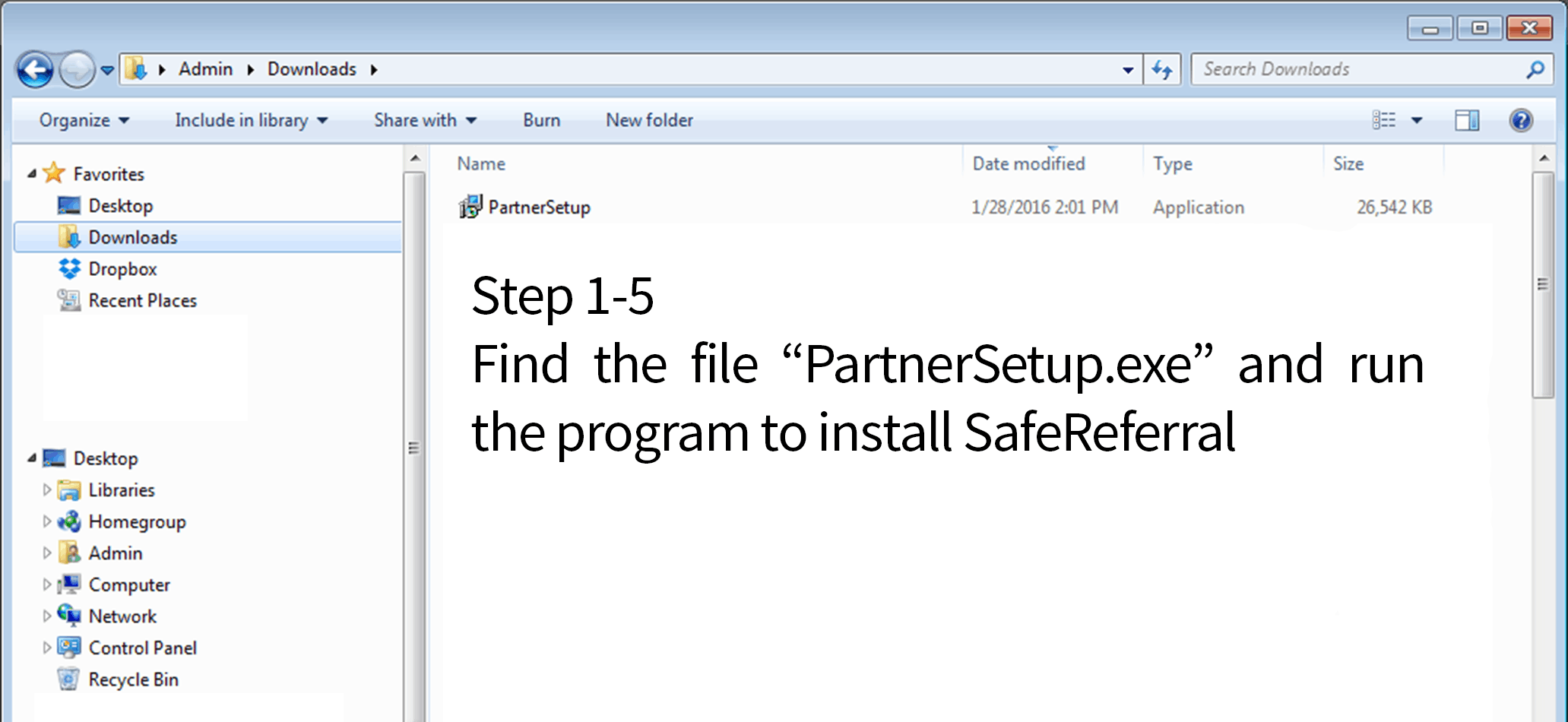
- Find "PartnerSetup.exe" in your downloads folder (if you've saved it there) and double click to run
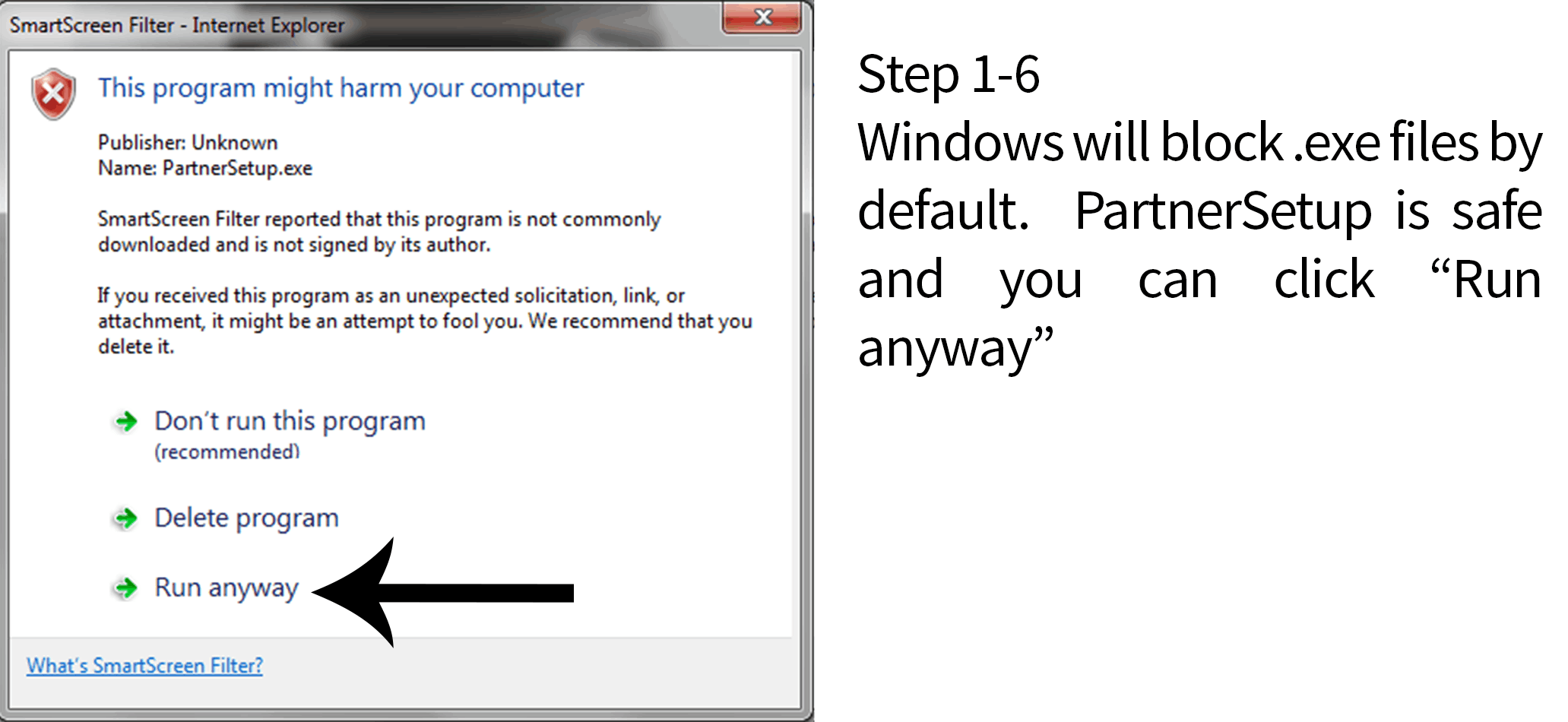
- Note: Windows and antivirus software block ".exe" files by default, select "Allow" or "Run anyway"
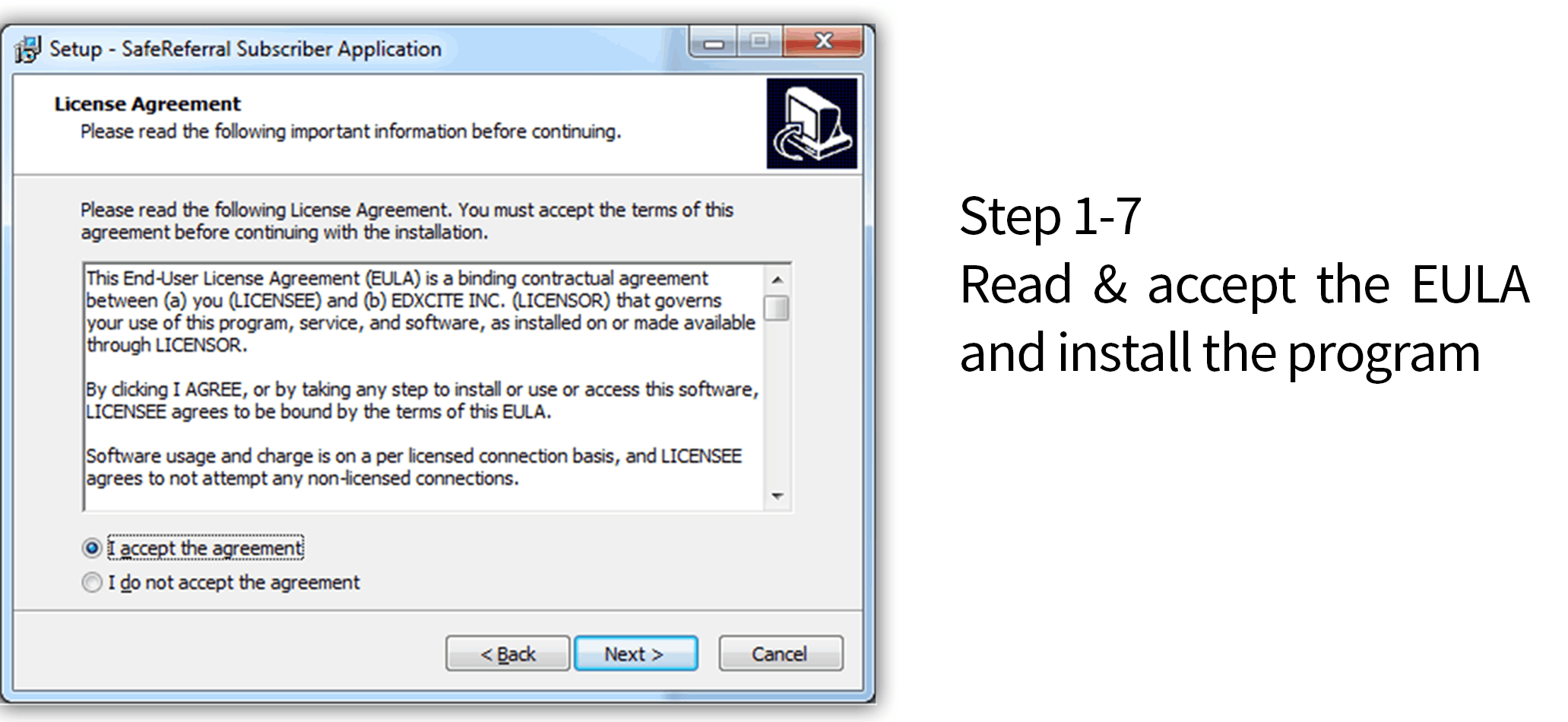
- Follow the installation wizard, read and accept the End User License Agreement to install
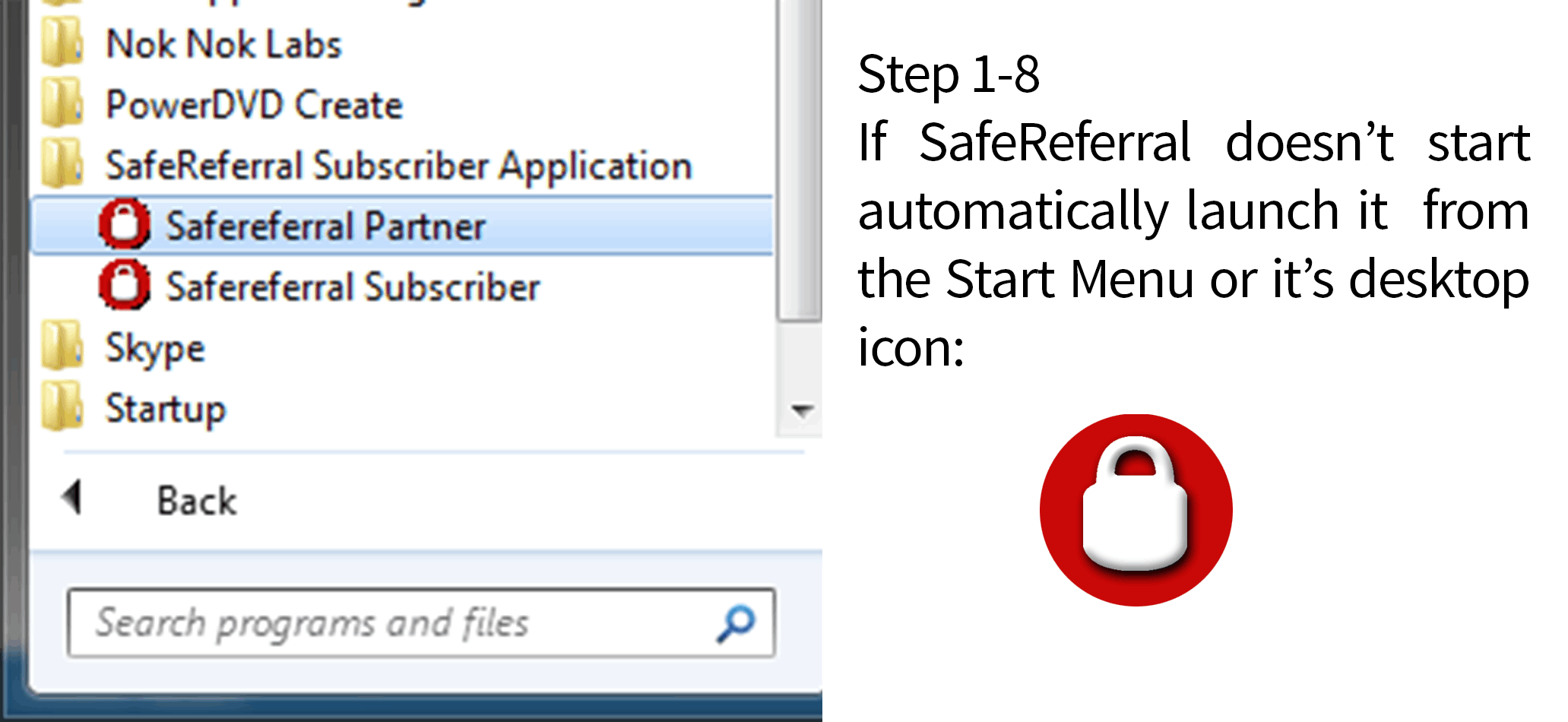
- If SafeReferral doesn't automatically start after installation, launch it from it's desktop icon or the start menu
Step 3: Activate
- Launch the program and enter your user name and password
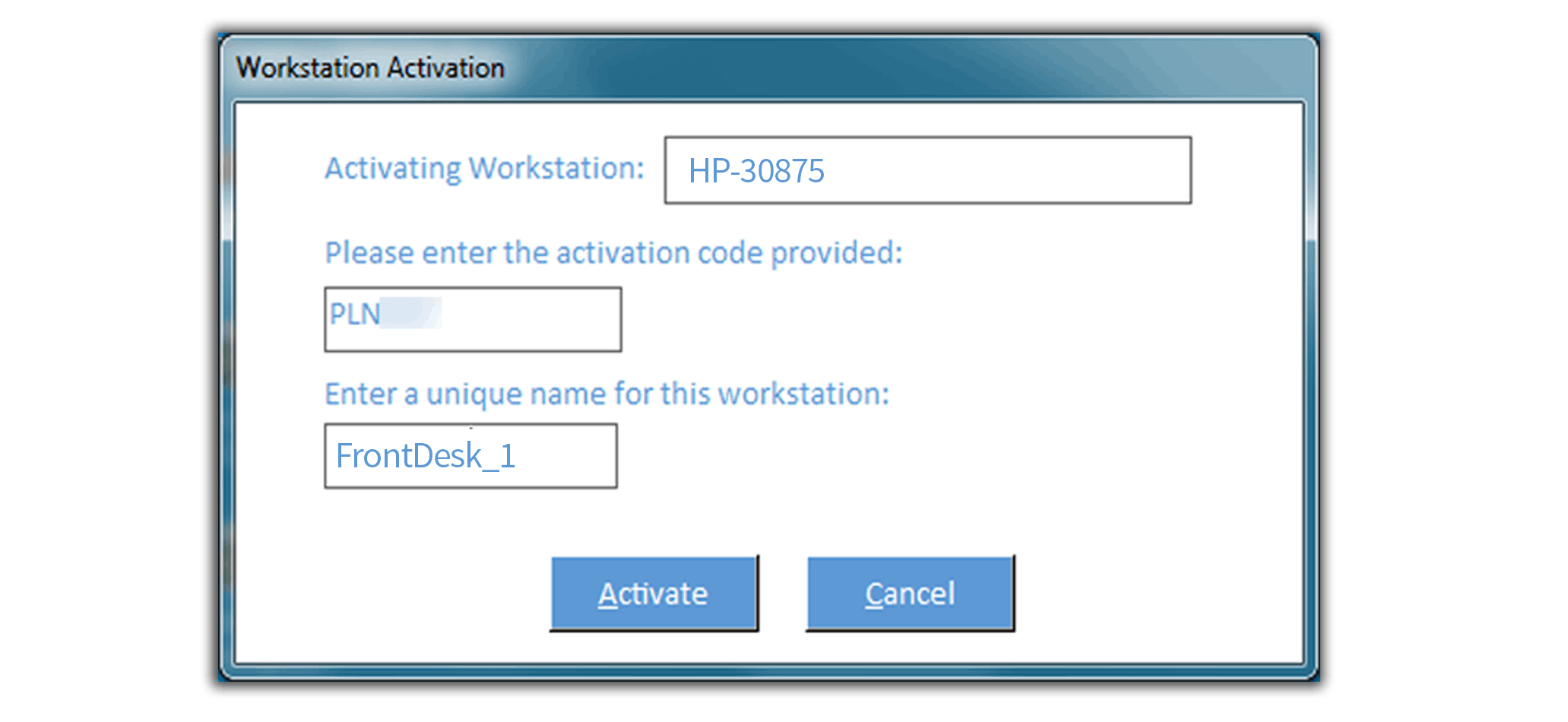
- Enter the activation code from the email sent to the master user